Teams
In organizations, teams play a crucial role in organizing collaboration and managing projects effectively. By grouping individuals who work on related tasks or projects, teams ensure streamlined workflows, communication, and task delegation. Managing teams is essential to maintain project focus and ensure each member's responsibilities are aligned.
Overview of the Teams Section
The Teams section is central to managing projects and collaboration within the organization. It allows you to organize members into groups working on specific objectives or tasks. Through this section, you can configure team settings, manage members, and integrate with Jira to streamline project management.
Key Functions:
View Teams: Access detailed information about each team, including its name, active status, and member roles.
Manage Team Settings: Adjust team configurations, rename teams, and change their active status.
Jira Integration: Set up Jira within teams to manage tasks efficiently and streamline project workflows.
Navigating and Managing Teams
This section covers how to view and manage teams within your organization, ensuring smooth collaboration and efficient project management.
My Teams
When you navigate to the My Teams section, you will find a detailed list of all the teams within the organization. Each team record provides the following details:
Team : Displays the name of the team.
Is Active: Shows whether the team is active within the organisation.
Added By: Specifies who added the user to the team.
Role: Indicates the role of the user within that team.
Action: A link labeled Team Details that allows you to view detailed information about the team, including member roles and other configurations.
Team Details
Clicking on Team Details provides an in-depth view of the selected team, allowing you to manage various team configurations, including team members, Jira integration, and team settings.The following sections are available:
Associated Teams
On the Team Details page, the Associated Users section features a table displaying information about the users who are part of the specific team. This section displays a table that includes:
User: The names of all users within the team.
Email: The email addresses of team members.
Is Active: The activity status of each team member.
Added By: Specifies who added each user to the team.
Role: The role of each user within the team.
Action: Provides a link labeled User Details that redirects to the profile page of the selected user.
Team Settings
The Team Settings section allows you to manage key aspects of the team. To update team details:
Click Edit to rename the team.
Change the team’s Status (active or deactivated).
Once your edits are complete, click Save Changes to apply them.
Jira Settings
The Jira Settings section facilitates the integration of your team with Jira. Here, you can view all tickets created within the team by clicking View Tickets.
Connect the team to Jira by filling in the following fields:
Username: Enter your Jira account username.
API Key: Generate an API token from your Atlassian account:
Logging in to Atlassian Account Management.
Create a new API token with a memorable label.
Copy the generated token and paste it into the designated space in our platform.
Domain: Specify the domain name associated with your Jira instance.
You can customize the integration by specifying:
Project: Select the project in Jira where tasks will be created.
Issue Type: Choose the type of issue that will be generated in Jira.
A help option is available to guide you through the Jira connection process. To update Jira settings, click Edit and adjust the necessary fields.
Adding Users to a Team
In this section, administrators can efficiently assign new members to a team and define their roles. By using the Add User button, you can select users from within the organization and assign appropriate roles within the team. This ensures proper team management and role assignment, helping each member receive the right permissions and responsibilities.
To add a user to a team:
Click the Add User button to open the modal labeled Add User to Team.
Select User: In the Select User dropdown, choose a user from the list of all users within the organization.
Role Type: From the Role Type dropdown, assign the appropriate role to the selected user.
Once the user and role are selected, click Add to apply the changes and add the user to the team.
Manage Teams
Upon clicking Manage Teams, a list of all teams within the organization will be displayed, providing the following details for each team:
Team Name: The name of each team.
Is Active: A status indicator showing whether the team is currently active.
Created At: The date and time when the team was created.
Action: A link labeled Team Details that navigates to detailed information about the selected team when clicked.
Creating New Teams
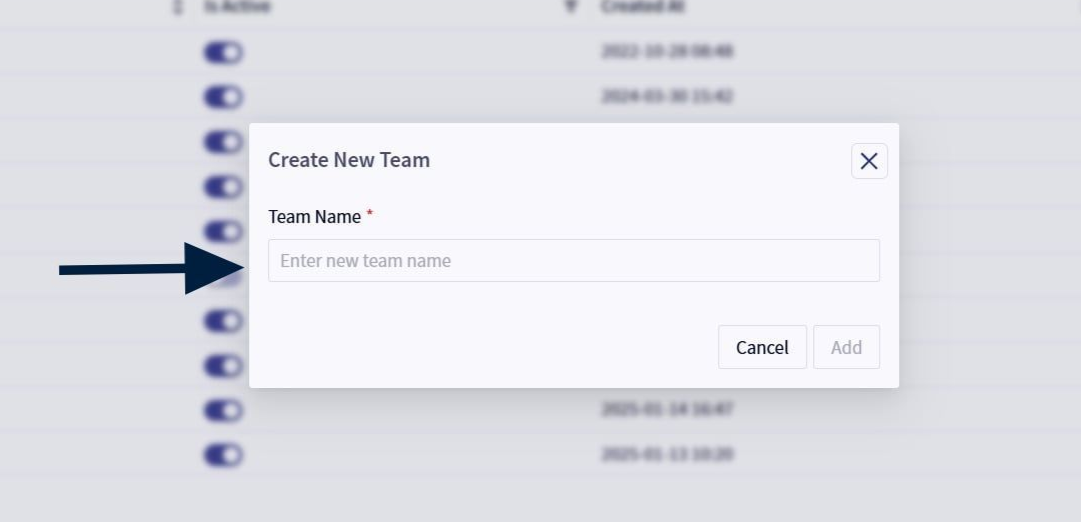
A Create Team button is available, allowing authorized users to create new teams. Clicking this button prompts users to input a new team name.